Internet Speed Test Results: Download, Upload, Ping, and Jitter
Understand an internet speed test result, compare the right metric for calls, streaming, gaming, and uploads, and retest without misleading conditions.
A single headline speed never describes the whole connection. Download, upload, latency, jitter, packet loss, Wi-Fi conditions, and test location answer different questions.
Before you start
Close competing apps, connect the device directly when possible, and keep this tab visible while the test runs.
Open the live toolRun the check step by step
- A production test must select a monitored, capacity-controlled regional node.
- It must warm up, measure latency and jitter, then transfer random download and upload bytes.
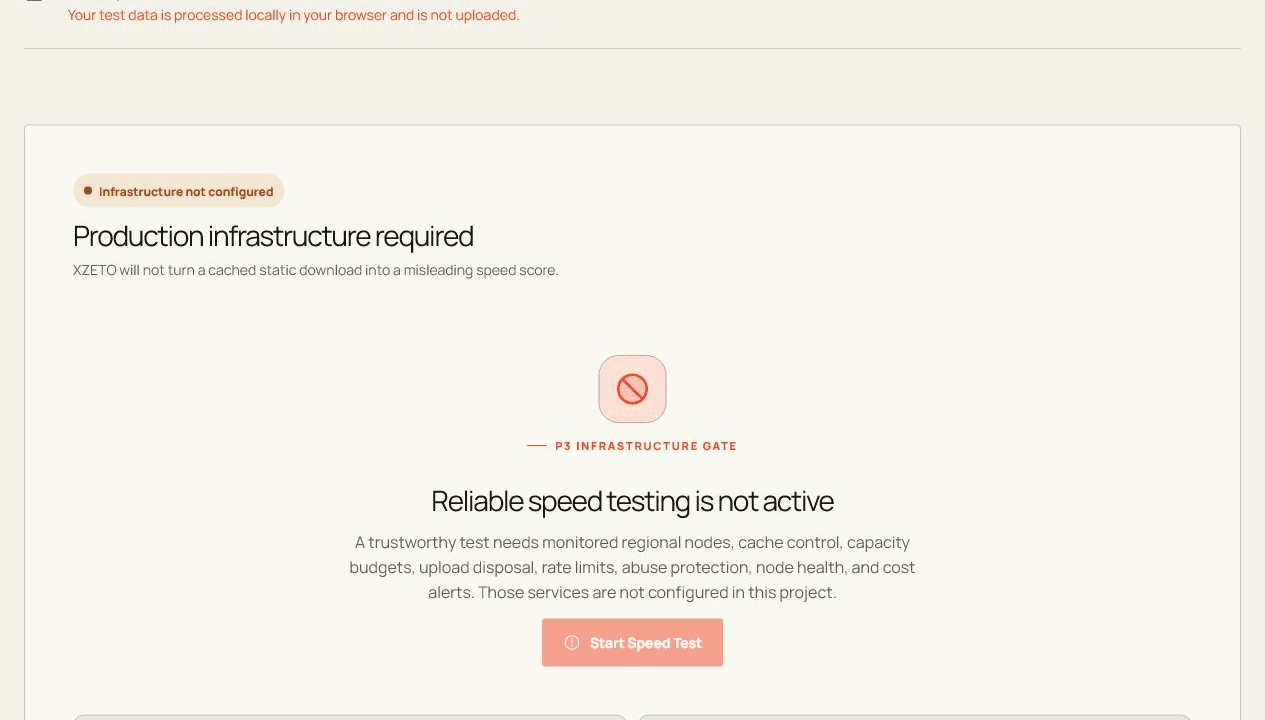
- This deployment reports infrastructure readiness instead of fabricating a result from a cached file.
How to read the result
Use download for receiving large data, upload for sending video or files, ping for response delay, and jitter for consistency. Repeat at different times and compare wired versus Wi-Fi before blaming the plan.
What the browser cannot prove
- Dedicated multi-region nodes, no-cache controls, rate limits, abuse protection, and cost monitoring are not configured.
- Wi-Fi, VPN, routing, distance, device load, and concurrent traffic would affect any eventual result.
Common questions
Is the Internet Speed Test private?
The page explains any network activity before it starts. Raw device input is never included in analytics.
Why can browser results differ from another app?
Browsers, operating systems, permissions, device routing, and background load can all change what is exposed and measured.